


Work on the real grid
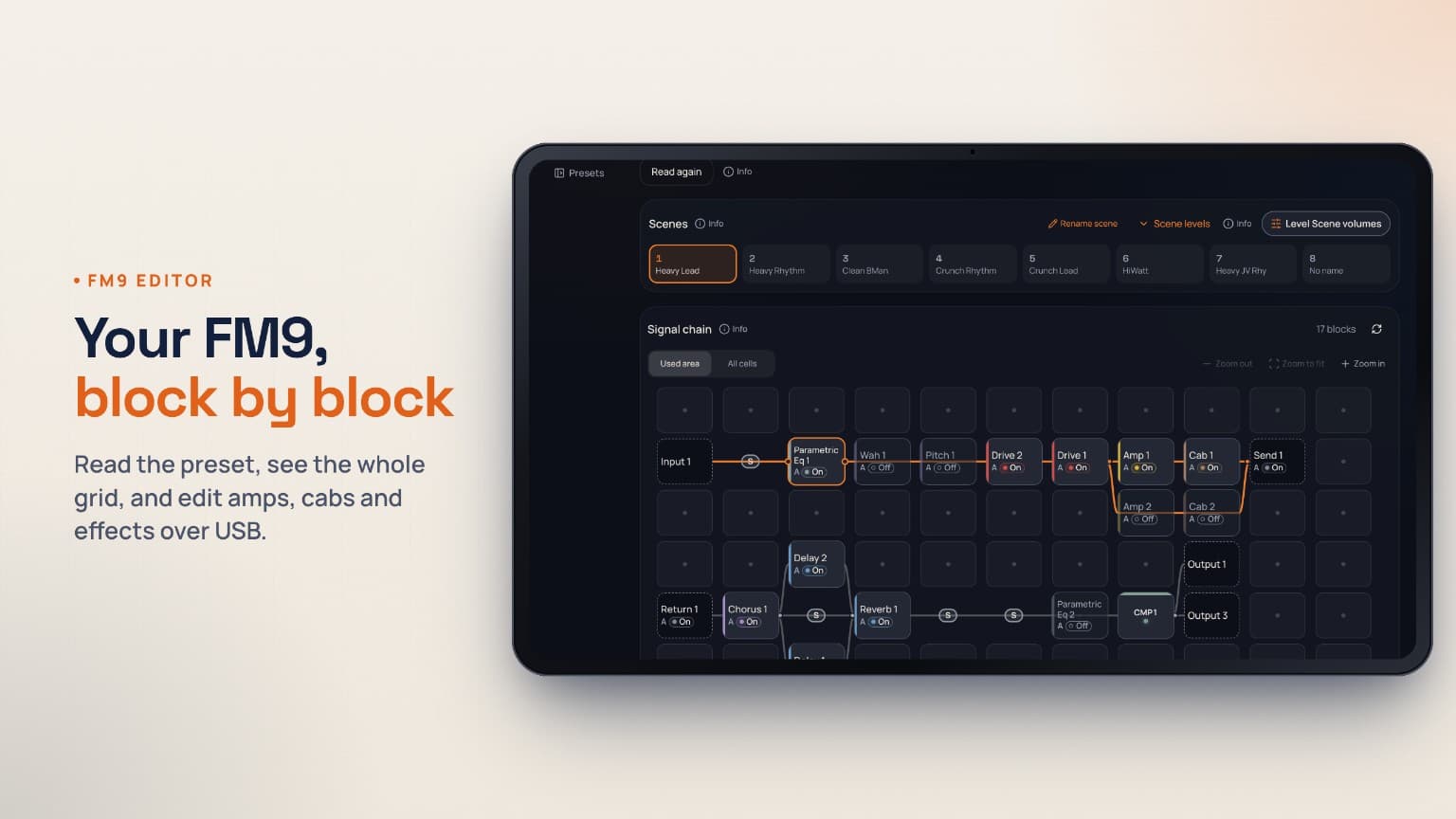
See your FM9's blocks and routing, then open a block to change its model, on/off state and settings. Grid tools let you work on the structure as well as the sound.
Fractal Audio FM9 editor
Read the preset on your FM9 and work directly with its grid, blocks, channels and Scenes. Dial it in yourself, or review changes from DMT Assistant before they reach your rig.
USB MIDI with SysEx. Desktop Chrome or Edge recommended; USB MIDI in the current DMT Android app.
Built for FM9
See your FM9's blocks and routing, then open a block to change its model, on/off state and settings. Grid tools let you work on the structure as well as the sound.
Switch among the FM9's eight Scenes and work with each block's A–D channels and Scene on/off states. Keep track of the variation you are actually hearing.
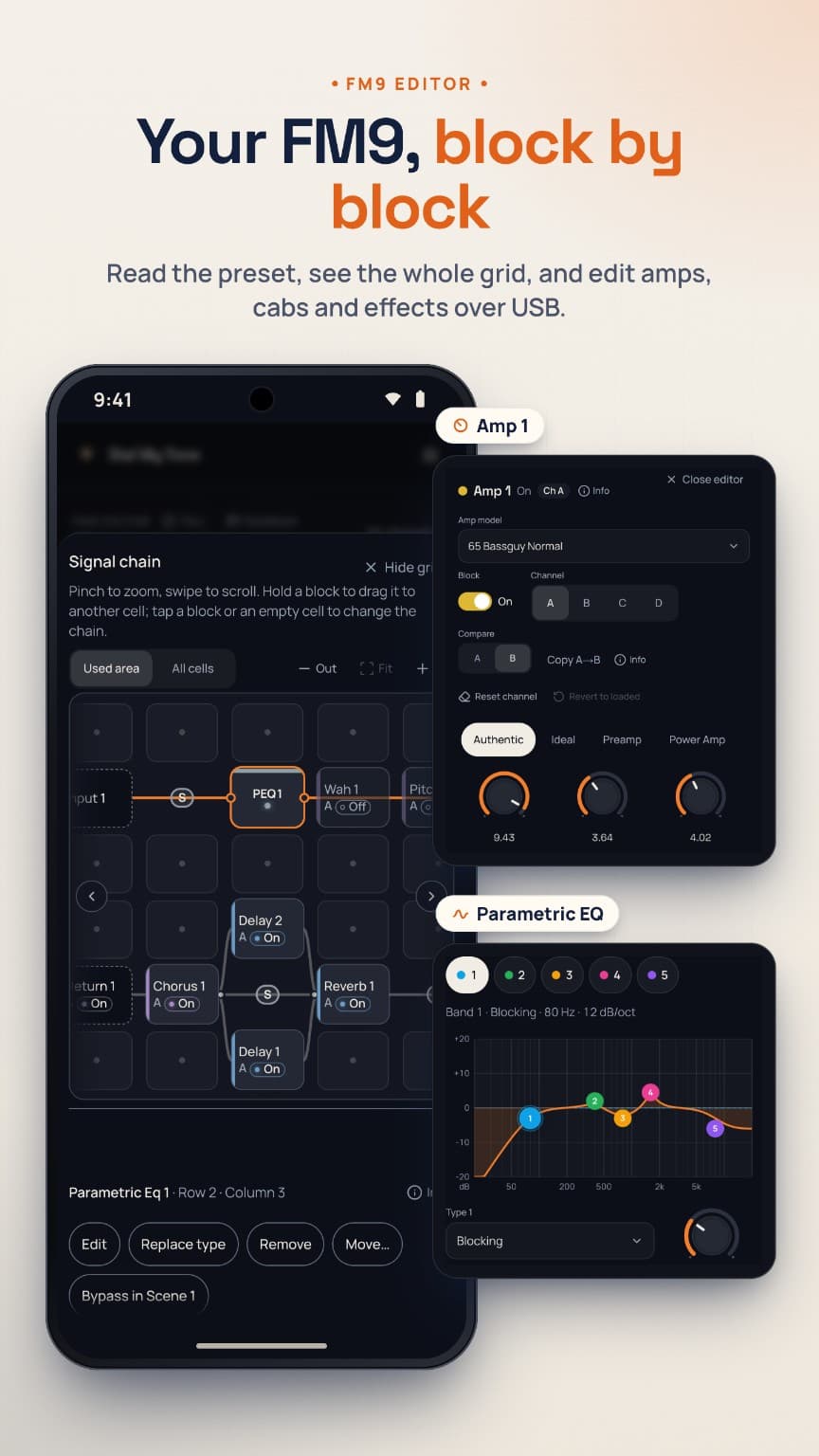
Adjust supported parametric EQ blocks on a response graph. In DynaCab mode, position each cab's microphone with a placement pad and precise position and distance sliders.
Undo and redo edits, compare the loaded preset with your changes using A/B, and check the unit's sync status. Store the result only when you explicitly save to a slot.
Optional DMT Assistant
Describe what you want to hear. Choose the whole preset or a Scene, and pick blocks to focus the request. DMT Assistant shows its suggested changes before changing your sound.
You can also keep editing by hand. Changes suggested by DMT Assistant do not reach your unit until you accept; accepting does not store a hardware preset.
Check before you connect
A live hardware connection needs one of the supported setups below. Your unit connects locally to your browser or the DMT app. Sign-in and internet access are still required for the online editor services and DMT Assistant.
USB · Chrome or Edge recommended
Requires Web MIDI and permission for SysEx messages. Fully quit FM9-Edit before connecting.
USB MIDI
Use the current DMT Android app and an appropriate USB connection. Approve Android's MIDI device permission.
MIDI access including SysEx
Approve the MIDI permission when connecting. Use desktop Chrome or Edge, or the DMT Android app, for the recommended connection path.
No physical-unit connection
Connect your FM9 from a supported computer or the DMT Android app instead.
Outside this editor's scope
This editor is for the FM9. It does not provide native .syx file import or export, an FM3 editor or an Axe-Fx III editor.
From connection to first edit
Use Chrome or Edge on your computer, or the current DMT Android app with USB MIDI. Fully quit FM9-Edit and close any other app or tab using the FM9.
Open the FM9 editor, sign in and choose Connect FM9. Approve MIDI access including SysEx so the editor can read and change your preset.
Choose Read preset to load the unit's current blocks, channels and all eight Scenes. Reading briefly switches through the Scenes, then returns. Now choose a block or Scene and dial it in.
Listen first. Keep it when you're ready.
Live edits and accepted DMT Assistant changes let you hear the result on a connected unit. Choose where to keep the finished preset.
Store the preset in a hardware slot. Choose the destination and confirm before overwriting. Resolve any unconfirmed changes before saving. The editor reads the saved result back from the FM9.
Keep a copy in your DMT tone library without changing a hardware slot. If you opened a library tone, save a new version of it, or choose to save as a new tone instead.
A DMT library copy is not a full native FM9 backup. Before reopening it on the unit, review the editor’s list of settings and operations that will not carry over.
No. This live editor is currently for the Fractal Audio FM9 only.
No. The FM9 editor works with your connected unit and the DMT tone library. It does not offer native .syx import or export, and it does not open FM9 presets offline.
The FM9 editor does not include a tuner, looper or footswitch-assignment interface. Those tools shown on the Tone Master Pro page are specific to that editor.
Fully quit FM9-Edit and any other MIDI client, check your USB connection and allow MIDI with SysEx. If a change is unconfirmed, read again or retry it before saving. Save to FM9 asks you to choose and confirm the destination slot.
Start with what you already have
Fractal Audio and FM9 are trademarks of their respective owners. Device names identify compatibility; no affiliation or endorsement is implied.