

The whole rig, live
Load a rig from your unit's list, then open any block to switch it on or off, change its type and model and turn its knobs. Add, move or remove blocks and change the signal path. Graphic EQs get their own sliders.
HeadRush Prime editor
Read the rig on your HeadRush and work with its chain, Scenes, footswitches and pedals over Wi-Fi. Dial it in yourself, or review changes from DMT Assistant before they reach your rig.
Wi-Fi, on the same network as your unit. Chrome or Edge with HeadRush Link on a computer, or the DMT Android app 1.0.7 or later.
Built for HeadRush Prime
Load a rig from your unit's list, then open any block to switch it on or off, change its type and model and turn its knobs. Add, move or remove blocks and change the signal path. Graphic EQs get their own sliders.
Work on your Scenes and footswitches: name a switch, pick its colours, choose what it switches and press it from the editor, as on the unit. Changes you make on the unit show up in the editor.
Assign each expression pedal to a block setting with its heel and toe range, and tune up from the editor. On a split rig, the Mix block sets each path's level and pan, the crossfade and the delay.
Undo and redo your changes, and Read your unit again at any time. Edits play on your HeadRush as you make them. When it sounds right, Save the rig or save it as a new one.
Optional DMT Assistant
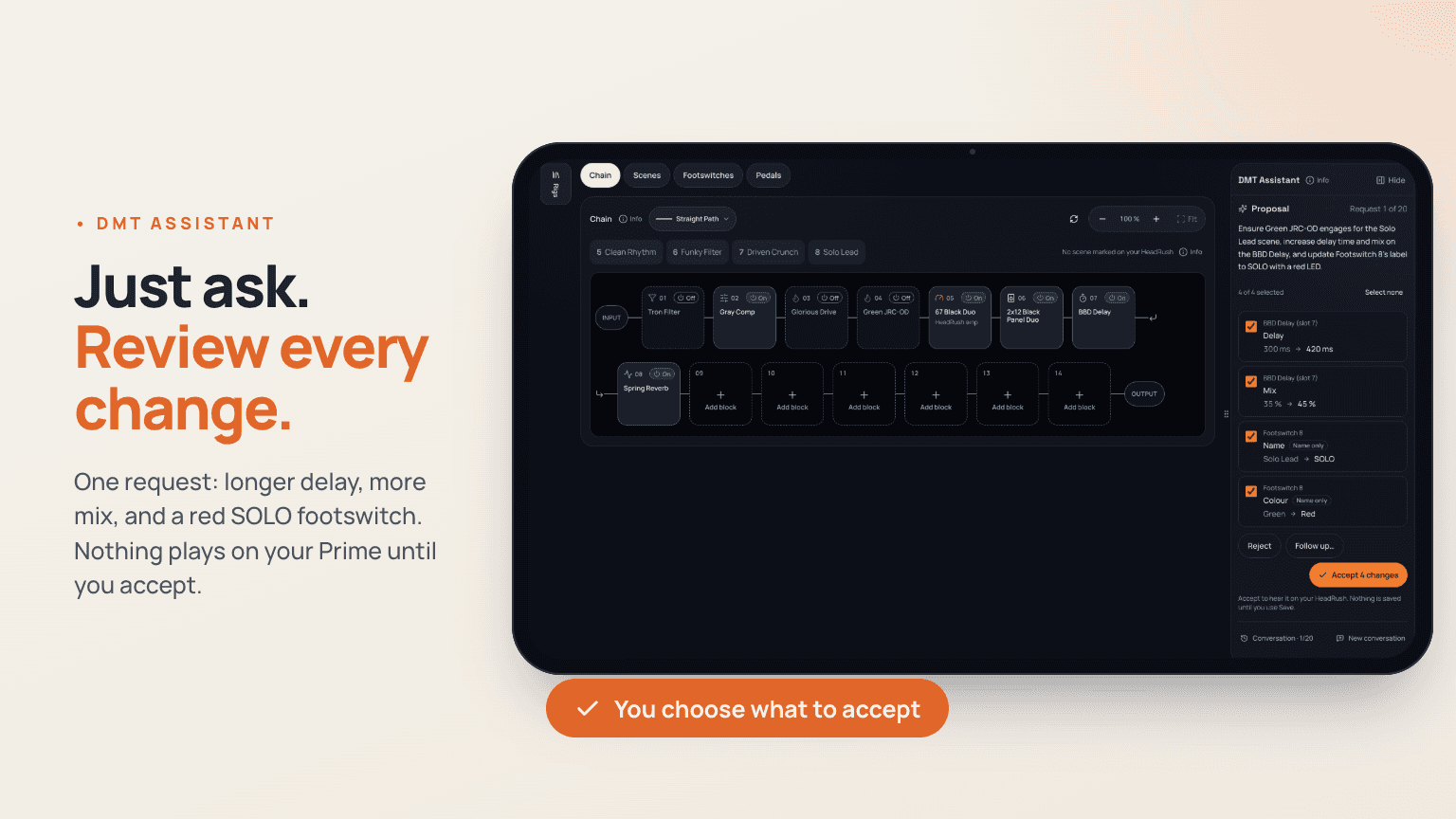
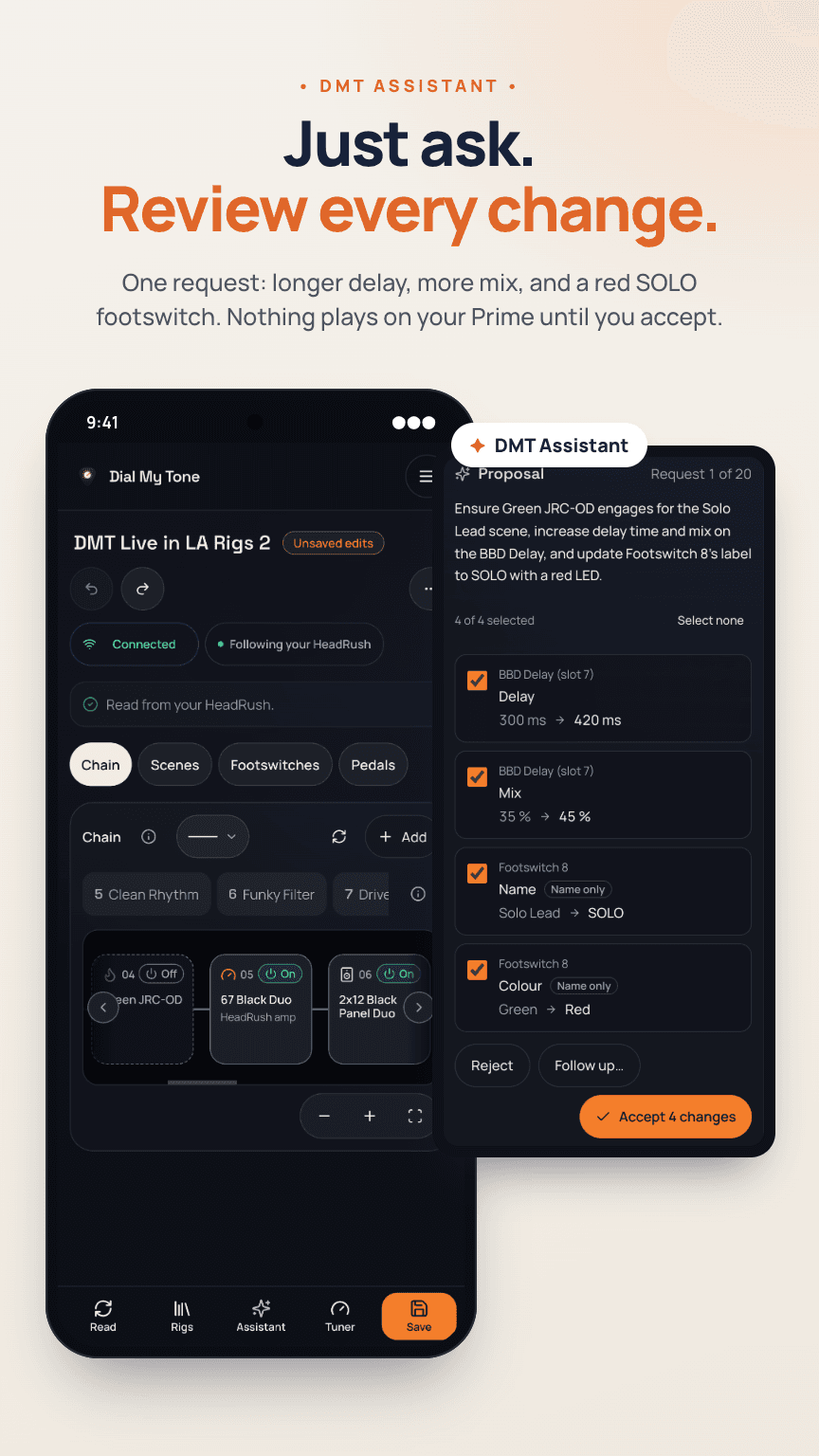
Describe what you want to hear. Choose the whole rig or a Scene, and pick blocks on the chain to focus the request. DMT Assistant shows its proposal before changing your sound.
You can also keep editing by hand. Changes suggested by DMT Assistant do not reach your unit until you accept; accepting does not save the rig.
Check before you connect
A live hardware connection needs one of the supported setups below. Your unit connects locally to your browser or the DMT app. Sign-in and internet access are still required for the online editor services and DMT Assistant.
Wi-Fi · Chrome or Edge with HeadRush Link
Install the free HeadRush Link browser extension, then keep the computer on the same Wi-Fi network as your unit.
Wi-Fi · version 1.0.7 or later
Phones and tablets. Keep the device on the same Wi-Fi as your unit, not a guest network. An older app only sends rigs; update it from Google Play to edit.
Not supported yet
These can't connect to your HeadRush yet. Use Chrome or Edge on a computer, or the DMT Android app, instead.
Prime supported · Core and Flex Prime in Beta
Every edit is available on all three. DMT hasn't tested the editor on a Core or Flex Prime yet, so tell us with Feedback if something looks or sounds wrong.
HeadRush Remote on · PIN authentication off
Turn on HeadRush Remote in Global Settings. The editor can't enter a Remote PIN yet, so turn PIN authentication off.
From connection to first edit
In your unit's Global Settings, turn on HeadRush Remote and turn PIN authentication off. Put your computer, phone or tablet on the same Wi-Fi network as the unit.
On a computer, install HeadRush Link for Chrome or Edge. On Android, use the DMT app 1.0.7 or later. Open the editor, sign in, choose your unit and connect.
The editor reads the rig on your unit. Open a block, a Scene or a footswitch and dial it in, or load another rig from the Rigs list.
Listen first. Keep it when you're ready.
Live edits and accepted DMT Assistant changes play on your HeadRush as you make them. Save when you want to keep the rig.
Replace the saved rig on your HeadRush with what it plays now. The editor asks before saving over it. Where saving over isn't available, Save makes a new rig instead.
Create a new rig on your HeadRush with the current settings and a name of your choice. The rig you started from stays as it was.
No. The HeadRush editor works live on the rig on your connected unit. It does not open or export rig files.
Check that your HeadRush is on, HeadRush Remote is on in Global Settings, PIN authentication is off, and your computer or phone is on the same Wi-Fi as the unit, not a guest network. On a computer, if the unit's name doesn't answer, enter the IP address shown in Global Settings → HeadRush Remote.
No. Accept applies the selected changes so you can hear them on your HeadRush. Nothing is saved until you use Save or Save as new rig.
Yes, in Beta. Every edit is available, but DMT hasn't tested the editor on a Core or Flex Prime yet. If something looks or sounds wrong, tell us with Feedback in the editor.
Start with what you already have
HeadRush and HeadRush Prime are trademarks of their respective owners. Device names identify compatibility; no affiliation or endorsement is implied.