


Hands on your sound
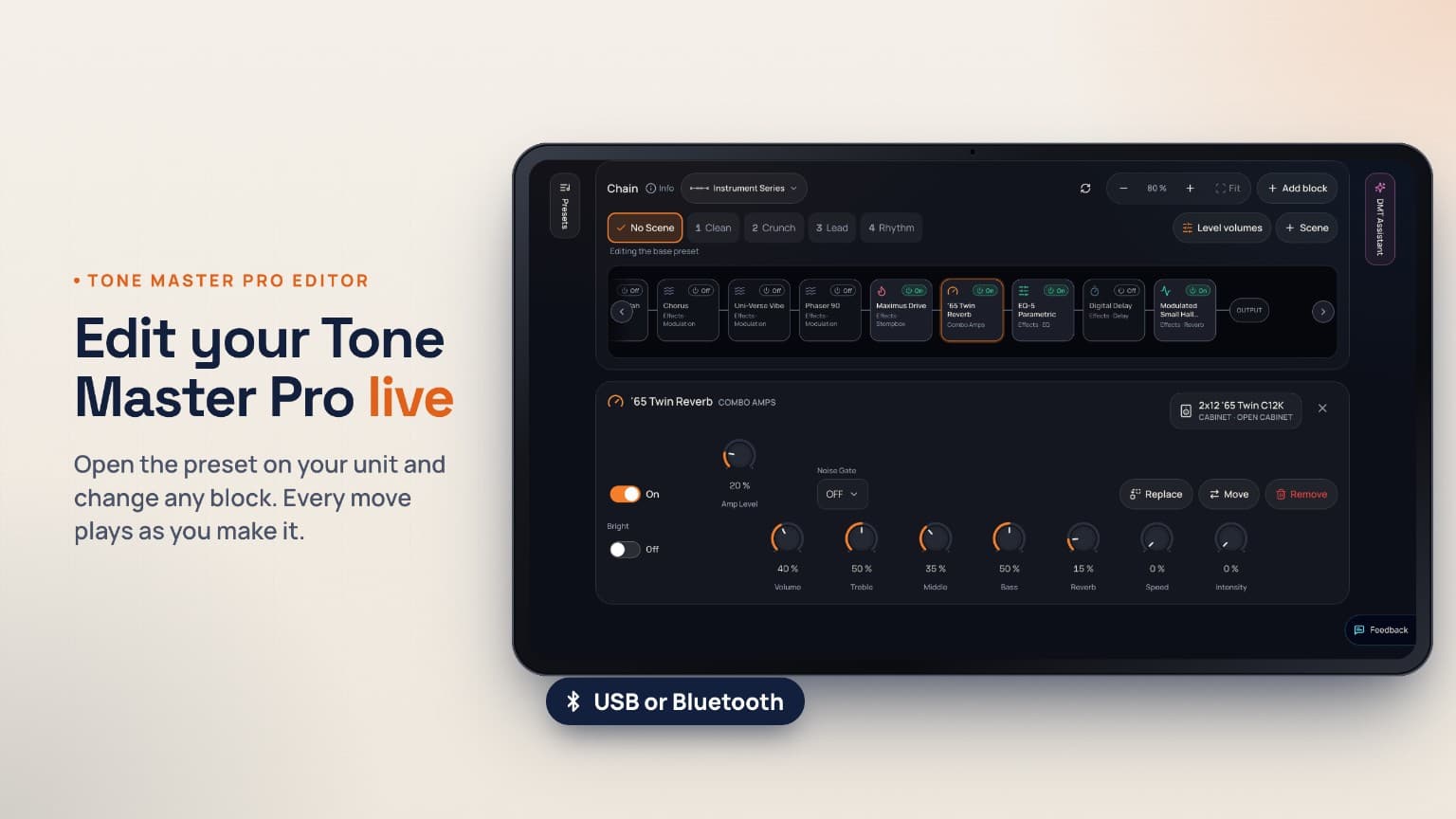
Read your preset, open a block and adjust real amp, cab and effect controls. Edit the signal path and shape a parametric EQ on its response graph.
Fender Tone Master Pro editor
Start with the preset on your unit. Shape it with live controls, organize your Scenes and footswitches, or ask DMT Assistant to suggest changes you can review first.
USB on desktop Chrome or Edge. Wireless on supported macOS browsers and the DMT Android app.
Built for Tone Master Pro
Read your preset, open a block and adjust real amp, cab and effect controls. Edit the signal path and shape a parametric EQ on its response graph.
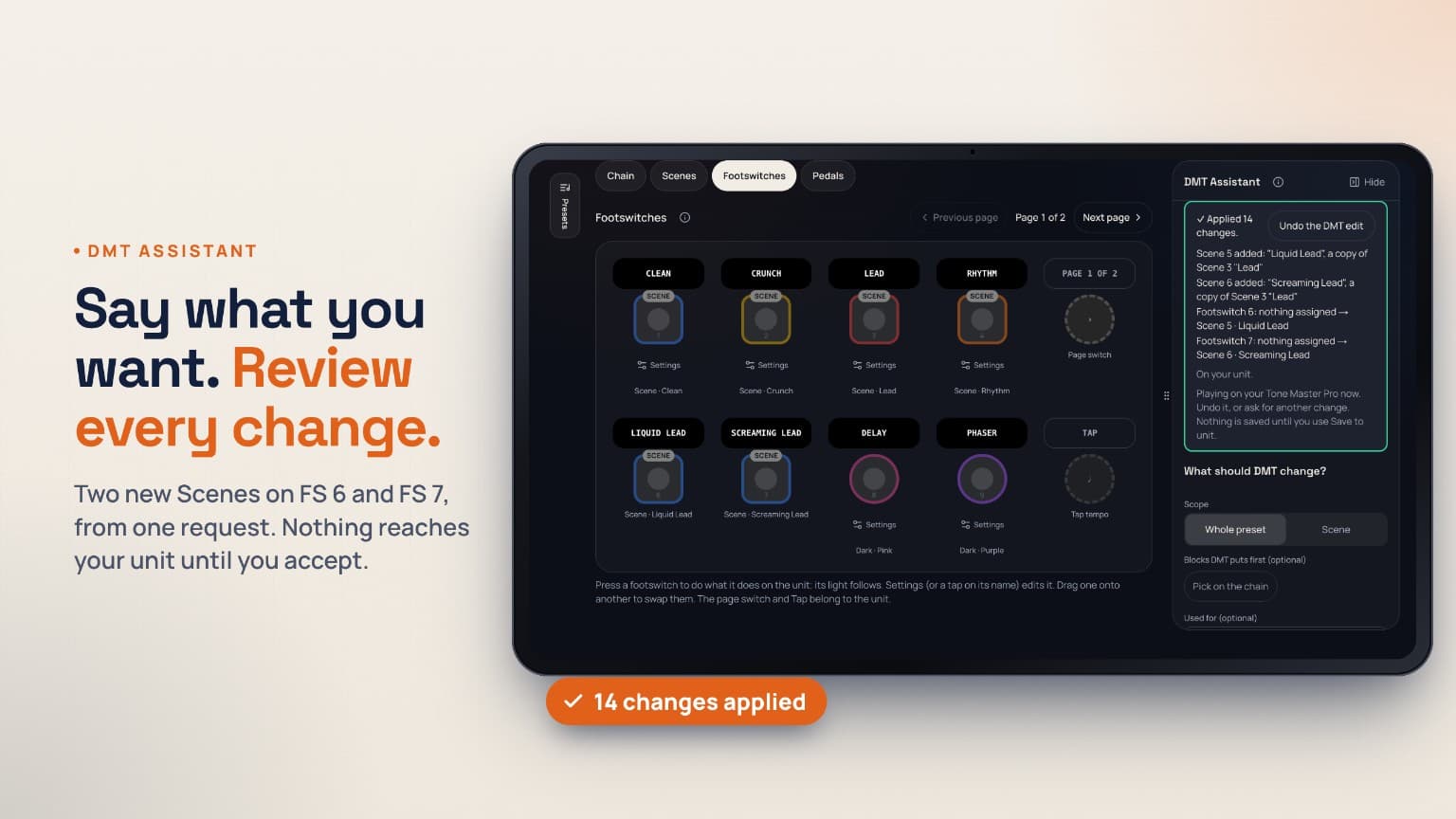
Create and organize up to eight native Scenes, assign footswitches and set expression pedal ranges. Live follow keeps the editor aligned with the preset and Scene on your unit.
Tune, control the looper, watch levels and balance Scene volumes from the editor. These are Tone Master Pro tools, alongside the sound controls.
Undo and redo your changes, or use A/B Compare to hear the loaded preset against your edits. A live audition changes what you hear; saving is a separate action.
Optional DMT Assistant
Describe what you want to hear. Choose the whole preset or a Scene, and pick blocks to focus the request. DMT Assistant shows its suggested changes before changing your sound.
You can also keep editing by hand. Changes suggested by DMT Assistant do not reach your unit until you accept; accepting does not store a hardware preset.
Check before you connect
A live hardware connection needs one of the supported setups below. Your unit connects locally to your browser or the DMT app. Sign-in and internet access are still required for the online editor services and DMT Assistant.
USB · Chrome or Edge
Allow the browser to access your unit. Tone Master Pro Bluetooth is currently disabled on Windows; use USB.
USB or supported Bluetooth · Chrome or Edge
Approve the browser's device permission. For wireless, turn on Bluetooth on your computer and Tone Master Pro.
Bluetooth · latest DMT Android app
Use the DMT app's Tone Master Pro wireless option and approve Bluetooth permission. Keep the app up to date.
No physical-unit connection
Phone and tablet browser wireless is disabled. Editing an uploaded .preset file is a separate workflow.
Upload, edit and download .preset
Does not require a live unit connection. Sign-in and online DMT services are still required; file editing is not an offline editor.
From connection to first edit
For USB, connect your Tone Master Pro to a computer and use Chrome or Edge. For supported wireless, turn on Bluetooth in the unit's Global Settings and use the macOS browser or DMT Android app path above.
Close Fender Pro Control and other apps or tabs using the unit. Open the editor, sign in, choose USB or wireless and approve the device permission.
Read the current preset from your unit, or choose one from the preset list. Open a block to adjust it. An uploaded .preset can also be edited without connecting a unit.
Listen first. Keep it when you're ready.
Live edits and accepted DMT Assistant changes let you hear the result on a connected unit. Choose where to keep the finished preset.
Store the preset in a hardware slot. Choose the destination and confirm before overwriting. Select the Scene you want before saving: the slot will reopen on it, and the preset's base settings will take that Scene's values, just as when saving on the unit.
Keep a copy in your DMT tone library without changing a hardware slot. If you opened a library tone, save a new version of it, or choose to save as a new tone instead.
Yes. Upload a Tone Master Pro .preset file, edit it and download the edited file. Changes are not sent to hardware without a supported live connection. You still need to sign in and stay online.
On Android, use the latest DMT app and choose the Tone Master Pro wireless connection. Ordinary phone and tablet browsers cannot connect wirelessly, and iPhone and iPad do not support a physical-unit connection. You can use a supported computer instead.
The editor needs its own connection to the unit. Close Pro Control, other editor tabs and any other app holding the device. If wireless discovery still fails, toggle Bluetooth off and on in the unit's Global Settings and reconnect.
No. Accept applies the selected changes so you can hear them on a connected unit. Use Save to unit to store a hardware preset, or Save to DMT for a library copy.
Start with what you already have
Fender and Tone Master Pro are trademarks of their respective owners. Device names identify compatibility; no affiliation or endorsement is implied.